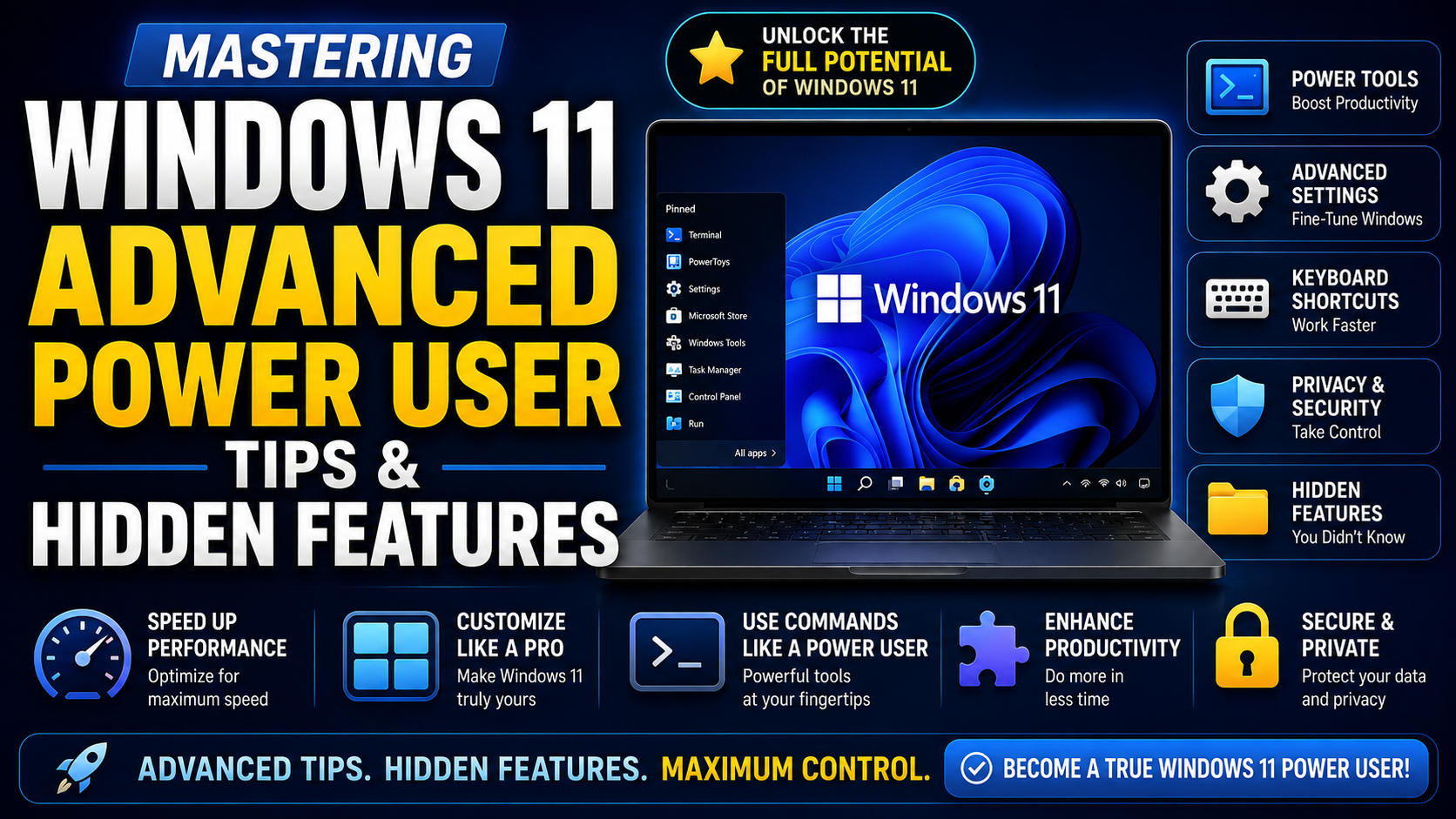
Ready to push Windows 11 to its limit? From unlocking the hidden 'God Mode' and restoring the classic context menu to mastering Microsoft PowerToys, learn how to turn your OS into the ultimate productivity machine.
Windows 11 is polished, but it often hides its best features under layers of simplicity. If you want to stop fighting your OS and start bending it to your will, this is your guide.
1. Unleash Microsoft PowerToys
If you aren't using Microsoft PowerToys, you aren't really using Windows 11. This is a set of system utilities for power users to tune and streamline their Windows experience.
- FancyZones: Create complex window layouts and snap them into place instantly.
- PowerRename: Batch rename hundreds of files at once using search and replace or regular expressions.
- Text Extractor: Copy text from anywhere on your screen—even from videos or images—using a shortcut (Win + Shift + T).
Pro Tip: Install it via the Microsoft Store or via Winget: winget install Microsoft.PowerToys
2. Unlock "God Mode"
There is a hidden folder in Windows that aggregates over 200 administrative tasks into a single list. It’s the ultimate control panel.
- Right-click on your desktop and select New > Folder.
- Rename the folder to exactly this:
GodMode.{ED7BA470-8E54-465E-825C-99712043E01C} - The icon will transform. Double-click it to access every single advanced Windows setting in one scrollable list.
3. Restore the Classic Context Menu
Windows 11's "Show more options" menu in the right-click context menu is a major productivity killer for power users.
You can force Windows to use the full, classic menu by running a command in Command Prompt (Admin):
reg add "HKCU\Software\Classes\CLSID\{86ca1aa0-34aa-4e8b-a509-50c905bae2a2}\InprocServer32" /f /ve
After running this, restart Windows Explorer (via Task Manager) to see the change immediately.
4. Advanced Memory Management
If you handle heavy data (like AI models or video editing), you can force Windows to be more aggressive with its pagefile (virtual memory) settings.
- Search "View advanced system settings".
- Under Performance, click Settings > Advanced tab > Change.
- Uncheck "Automatically manage paging file size."
- Set the "Initial" and "Maximum" size to a fixed value (e.g., 16000 MB if you have 16GB of RAM) to prevent Windows from resizing it constantly, which can cause micro-stutters.
A Final Word of Caution
Power user tweaks involve modifying the registry and system behavior. Always create a System Restore Point before making these changes. If something goes wrong, you can revert to your previous configuration in seconds. Windows 11 is a powerful engine—just make sure you know which levers to pull.